
📱 Phone Screen Flickering, Blinking or Flashing? Here’s the Real Fix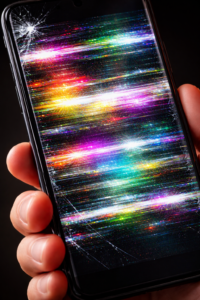
If your phone screen is flickering, blinking, or flashing on and off, it can get annoying really fast. Sometimes it starts suddenly, and you’re left wondering if your phone is about to die.
I’ve seen this issue quite a few times—especially after updates or when the phone gets a bit old. The good news is, most of the time it’s not a serious problem.
In this guide, I’ll walk you through:
- Why your phone screen is flickering or blinking
- What actually causes screen flashing issues
- Simple fixes you can try right now
Let’s figure it out 👇
⚡ Why Is My Phone Screen Flickering or Blinking?
Your phone screen may start flickering, flashing, or glitching due to small software bugs, settings issues, or sometimes hardware problems.
But here’s the thing—
it’s usually not as complicated as it looks.
1. 📲 Software Glitch (Most Common)
Honestly, this is the reason in most cases.
After a software update or even installing a new app, your phone can behave weirdly. I’ve personally seen phones start blinking randomly right after an update.
👉 The system just needs a quick refresh.
2. 🌗 Auto Brightness Acting Weird
Ever noticed your screen flickering more in low light or at night?
That’s usually because of auto brightness. It keeps adjusting the brightness again and again, which looks like flickering or flashing.
👉 In my opinion, this is one of the most ignored causes.
3. 📱 Problematic Apps
Not all apps are well-optimized.
Some apps (especially downloaded from outside the Play Store) can cause:
- Screen glitching
- Display blinking
- Random flashing
If the problem started after installing something new, that’s your clue.
4. 🔥 Overheating
If you use your phone heavily—gaming, long video sessions—it can heat up.
When that happens:
- Performance drops
- Display may start flickering or even shaking slightly
It’s your phone’s way of saying “give me a break.”
5. ⚡ Refresh Rate Issues
Modern phones come with high refresh rates like 90Hz or 120Hz.
Sounds great, but sometimes:
- Apps don’t support it properly
- The screen becomes unstable
👉 I’ve seen switching to 60Hz fix this instantly.
6. 🔌 Screen Flickering While Charging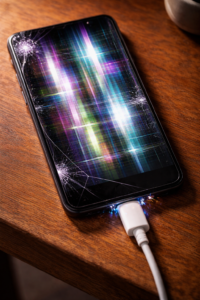
If your phone screen is flashing while charging, don’t ignore it.
Most of the time, the issue is:
- Cheap or duplicate charger
- Damaged cable
I’ve seen this happen a lot with local chargers.
7. 💥 Physical Damage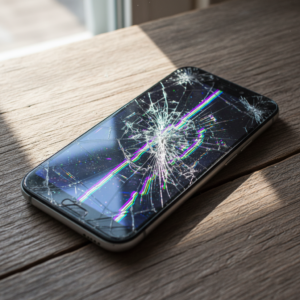
Let’s be real—if your phone has been dropped recently, that could be the reason.
Even if the screen looks fine outside, inside damage can cause:
- Flickering
- Blinking
- Lines on display
👉 In this case, software fixes won’t help much.
🛠️ How to Fix Phone Screen Flickering (Step-by-Step)
Now let’s fix it. Try these one by one:
✅ 1. Restart Your Phone
Sounds basic, but it works more often than you’d expect.
A simple restart clears temporary bugs causing screen flickering.
✅ 2. Turn Off Auto Brightness
Go to:
Settings → Display → Disable Auto Brightness
If your screen flickers more at night, this might solve it instantly.
✅ 3. Check Recently Installed Apps
Think about it—did the issue start after installing an app?
If yes:
- Uninstall it
- Or use Safe Mode to confirm
This is one of the easiest fixes.
✅ 4. Reduce Screen Refresh Rate
Go to:
Settings → Display → Refresh Rate → Set to 60Hz
If your phone supports high refresh rates, this can stabilize the display quickly.
✅ 5. Update Your Phone
Go to:
Settings → Software Update
Updates often fix bugs related to screen flickering or flashing issues.
✅ 6. Let Your Phone Cool Down
If your phone feels hot:
- Remove the case
- Stop heavy apps
- Give it some rest
You’ll often notice the flickering stops once it cools.
✅ 7. Change Charger & Cable
If the problem happens during charging:
- Switch to original charger
- Avoid cheap cables
This small change can make a big difference.
✅ 8. Factory Reset (Last Option)
If nothing works, go for a reset.
⚠️ Just make sure to back up your data first.
This removes deep software glitches.
✅ 9. Visit Service Center
If the screen is still flickering, blinking, or flashing:
👉 It’s likely a hardware issue
👉 You may need a display replacement
⚠️ Signs Your Screen Might Be Damaged
Be careful if you notice:
- Screen flickering with lines
- Display turning black or green
- Touch not responding properly
- Screen blinking continuously
From what I’ve seen, these usually mean hardware damage.
💡 Tips to Avoid Screen Flickering in Future
A few simple habits can save you from this problem:
- Avoid installing unknown apps
- Don’t use cheap chargers
- Keep your phone updated
- Don’t overheat your device
- Use a good protective case
❓ FAQs (People Also Ask)
Q1. Why is my phone screen flickering on and off?
In most cases, it’s due to software glitches, brightness issues, or apps.
Q2. How do I fix screen flickering without repair?
Start with restart, turn off auto brightness, and remove problematic apps.
Q3. Can overheating cause screen flickering?
Yes, heat affects display performance and can cause flickering or flashing.
Q4. Why does my screen flicker only in some apps?
That usually means the app is not optimized properly.
Q5. Is screen flickering a serious issue?
Not always. But if it’s due to physical damage, you’ll need repair.
🧠 Final Verdict
If your phone screen is flickering, blinking, or flashing, don’t panic.
From my experience, it’s usually a small issue like a setting or app causing the problem. Start with simple fixes, and you’ll likely solve it quickly.
If not, then yes—it might be time to check the hardware.
🔗 You May Also Read
- How to Fix Phone Overheating Issue (Step-by-Step Guide)
- Why Your Phone Battery Drains Fast & How to Fix It
- Touchscreen Not Working? Try These Easy Fixes
- Phone Hanging or Lagging? Simple Solutions That Work
- Why Do Apps Keep Crashing on Android? (Full Guide)